Digibox XS7, Digibox XL7, Digisafe/Digibox DS19, Digibox GT8, Digibox RX38 remote access
Welcome!
For all customers who have a Digibox, Digibox XL, Digibox GT or Digisafe with a software version V4 or higher in operation, there is the possibility of remote control of their device via PC, notebook, tablet or smartphone from any location.
If you already use the remote control or have an account on this page, you can log in directly here:
To set up your device for the first time, the following steps must be carried out, depending on the device type:
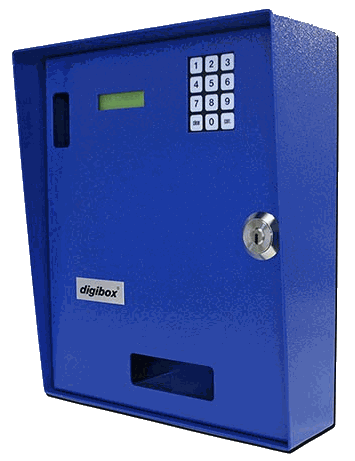
Digibox XS7
& Digibox XL7
Internet connection
Connect the Digibox or Digibox XL to the Internet via the supplied cable connection
(RJ-45).
Important note: Please ensure that the router has DHCP activated (corresponds to the default setting). Fixed IP addresses do not work.
Remote control code
Setting your own remote control code:
- 7x menu-button,
- Enter remote control code (exactly 8 characters)
- ok-button
The device then tries to contact the remote control center.
Serial number
Retriving the serial number of your device:
- 8x Menu-button
Registration
Open an account with your name / password and register your device with your serial number and remote control code.
Register
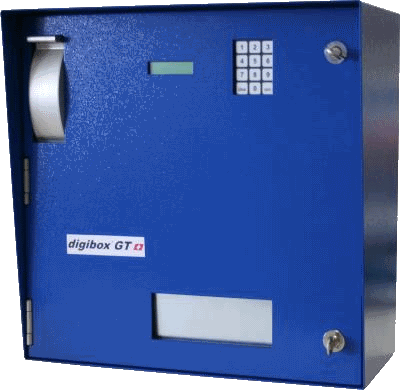
Digibox GT8
Internet connection
Connect the Digisbox GT to the Internet via the supplied cable connection (RJ-45)..
Important note: Please ensure that the router has DHCP activated (corresponds to the default setting). Fixed IP addresses do not work.
Remote control code
Setting your own remote control code:
- 7x menu-button,
- Enter remote control code (exactly 8 characters)
- ok-button
The device then tries to contact the remote control center.
Serial number
Retriving the serial number of your device:
- 8x Menu-button
Registration
Open an account with your name / password and register your device with your serial number and remote control code.
Register
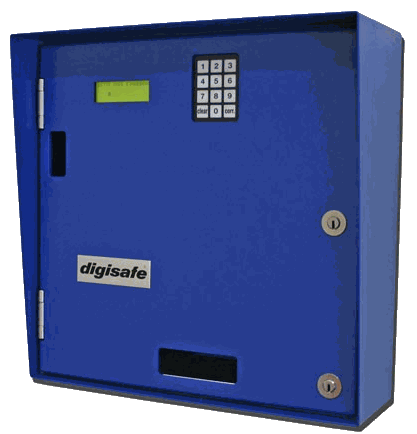
Digisafe/Digibox DS19
& Digibox RX38
Internet connection
Connect the Digisafe to the Internet via the supplied cable connection (RJ-45).
Important note: Please ensure that the router has DHCP activated (corresponds to the default setting). Fixed IP addresses do not work.
Remote control code
Setting your own remote control code:
- Menu-button (main menu)
- Menu 3 settings
- Menu 4 remote control
- Enter remote control code
(exactly 8 characters)
- ok-button
The device then tries to contact the remotecontrol center.
Serial number
Retriving the serial number of your device:
- Menu-button (main menu)
- Button 4 test
- Button 4 identification
Registration
Open an account with your name / password and register your device with your serial number and remote control code.
Register